
AliveCard guide
How to create a free digital business card
Add your details, choose a QR code and put it on your phone’s lock screen. Anyone you meet can scan it to text you, open WhatsApp or visit your AliveCard.
By the AliveCard team · Updated November 11, 2026
What is a digital business card?
It’s an online page with your name, contact details and links. Instead of handing over paper, share your page with a link or QR code. AliveCard puts that QR code on a wallpaper, so it’s ready when you pick up your phone.
Before you start
Have your name, phone number and email ready. A headshot, short bio, website, social links and a meeting-booking link are optional. Choose contact details you’re comfortable displaying on a public card.
1. Sign in and add your profile
Open the AliveCard builder. Check the Terms and Privacy box, then sign in with Google or a code sent to your email. In Profile → General, add your name and phone number and save. The other sections unlock once those required details are saved.
Add a photo, your role and a short bio. In Links & Social, add your website, booking link and social profiles. Pick a short card link and check that it’s available before sharing it.
Open the builder2. Pick your lock-screen wallpaper
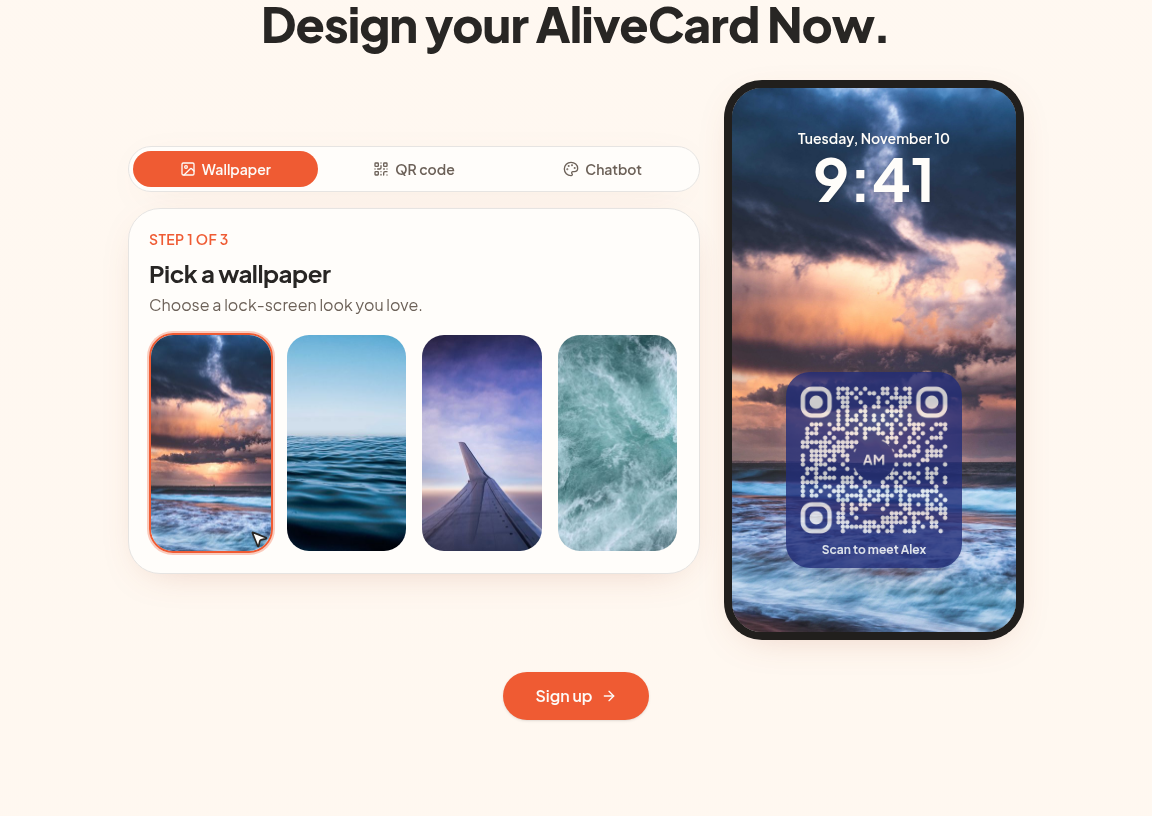
Go to Build → Wallpaper. Choose an image from the gallery or upload your own. Keep the area behind the QR code uncluttered and leave room for your phone’s clock. Select Next to style the code.
3. Choose what a scan does
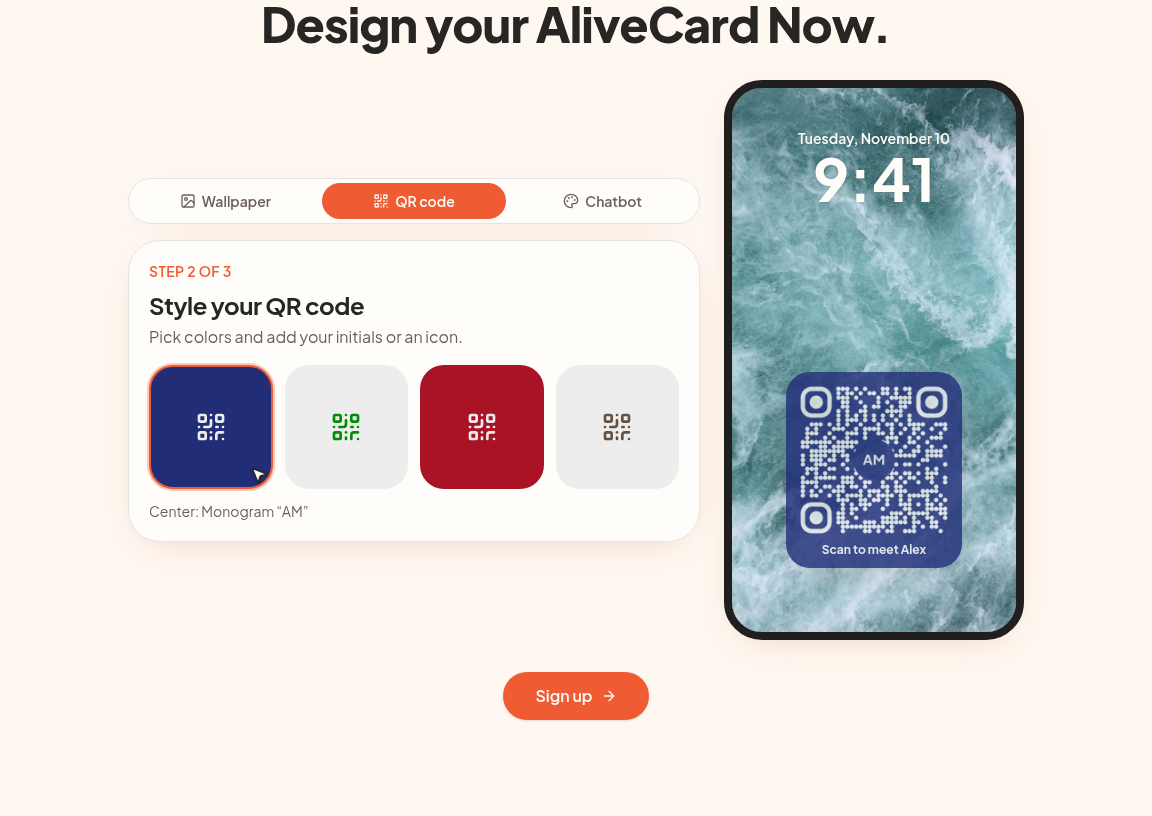
In QR style, choose your colors, size and center: initials, an icon or no center. Move the code away from your clock and phone controls. Under the scan action, choose one of these:
- Send a text message: opens a prepared message to your number with your card link. The other person still needs to press Send; scanning alone does not give you their number.
- Send a WhatsApp message: opens WhatsApp with your message and card link. The other person needs WhatsApp and must send the message.
- Open my profile link: opens your public card directly. You only receive contact details if the visitor chooses to share them.
For text or WhatsApp, customize the message; AliveCard appends your profile link. Tap Create wallpaper after changing the scan action so the downloaded QR code uses the new choice.
4. Set up contact capture and your optional A.I. assistant
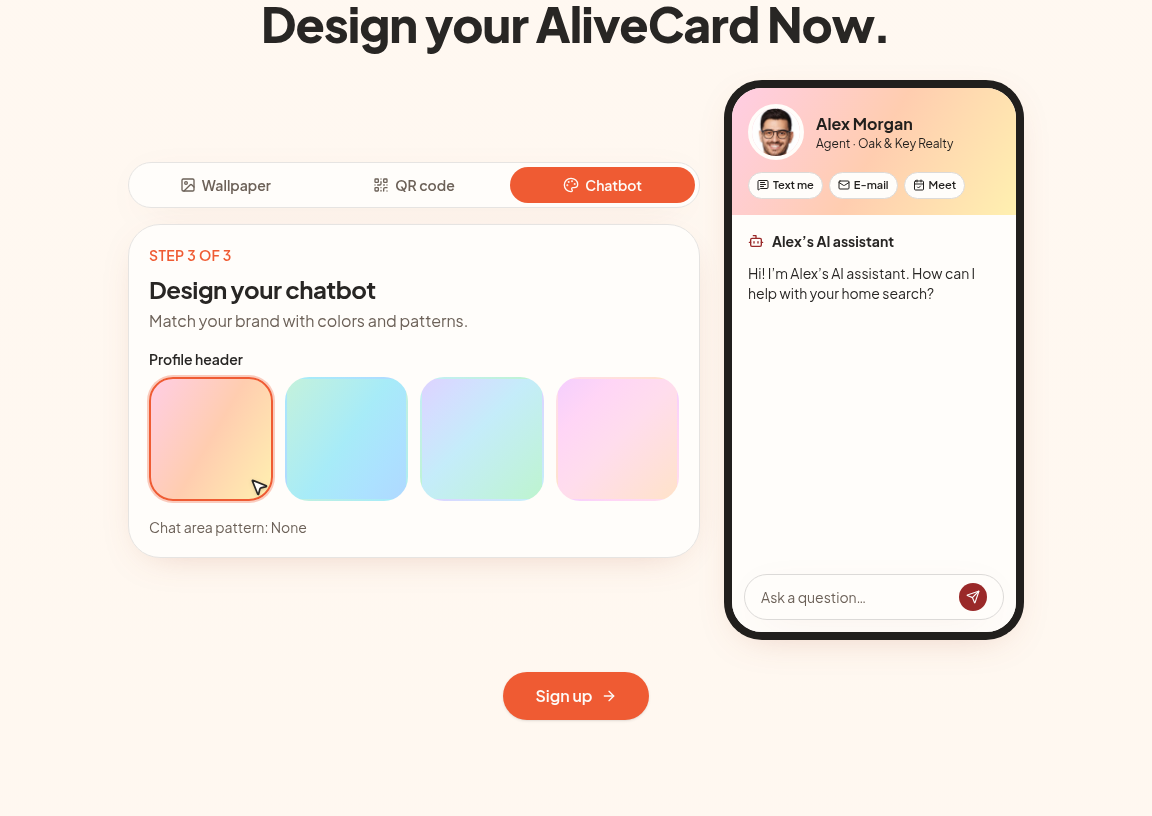
In Chatbot, choose which contact fields visitors can share. Every enabled field is required on the form. Enable the A.I. assistant if you want it to answer questions, then choose the profile, website and other content it may use. Only include information you want it to share.
Use the right-hand preview to try links, ask a question and complete the contact form. Preview chats and contact-form tests are not saved as leads. If the assistant is disabled or has no knowledge, visitors see the contact form instead.
Your card, QR code, contact capture and inbox are free forever. Each account includes 50 free A.I. contacts—contacts who can chat with your assistant.
5. Save the image and set your lock screen
iPhone: use Save to Photos. Depending on your browser, AliveCard opens the share sheet or an image you can save. Then open Settings → Wallpaper → Add New Wallpaper → Photos and choose the saved image. Keep the entire QR code visible.
Android: save the wallpaper image, then open it in your gallery or your phone’s wallpaper settings and choose Lock screen. Menu names vary by phone.
Computer: download the image, transfer it to your phone and set it as the lock-screen wallpaper. If you change the scan action or QR design later, create and install a new image.
6. Test before your next event
Ask someone to scan the code on your actual locked phone using their camera. Do not rely only on the builder preview.
- Check that the message uses your number, or that the link opens your specific card—not just the AliveCard homepage.
- For text or WhatsApp, send a test message and confirm you receive it. For a profile scan, check the contact and booking links.
- If the assistant is enabled, ask a question answered by the content you provided and check its response.
- Submit contact details only if you want a real test lead saved, then confirm they appear in your Contacts inbox. Otherwise use the builder preview’s local-only form.
If the camera struggles, increase brightness, make the code larger and keep strong contrast. Avoid cropping its border or covering it with the clock.
Ready for your next introduction
Create your card, test it with another phone and keep your next connection in one inbox.
Create my free AliveCard